

Desktop Scanners for Remote Deposit Capture
Important information for businesses that deposit checks using a desktop scanner.
Starting November 2, the TowneBank Remote Deposit Capture system will be the only deposit option with a desktop scanner for your business checks.
By now, you should have had an appointment with our partners at Benchmark Technologies to install the necessary software and drivers so you can begin using the system.
Have You Completed Your Installation?
If you have not yet had an appointment, please contact our Treasury Member Care team:
Phone: 844-638-6724
Hours: Monday-Friday, 8:30 AM-6:00 PM
Important: If Your TowneBank Software Is Not Installed
If you have not yet installed the TowneBank software, you will need to visit a local TowneBank office to deposit checks.
Your First Login
Login instructions were emailed to all users. If you did not receive your instructions, please contact Treasury Member Care using the information below. The video featured here provides you with an overview.
Treasury Member Care: 844-638-6724
Monday – Friday | 8:30 AM – 6:00 PM
Logging In on November 2
Follow the steps below to access Remote Deposit Capture and connect your desktop scanner.
Access Remote Deposit Capture Through Towne24
You will access Remote Deposit Capture through Towne24. Select the Login button in the top, right-hand corner, then select 'Towne24' from the drop-down menu. You can log in with the same username and password you used at Dogwood State Bank.
Connect Your Scanner
Once you log into the system, you will need to select the user icon in the top right-hand corner, and click on 'User Profile'. In the 'Scanner' field, click into the drop-down menu and find your scanner to connect it to your profile.
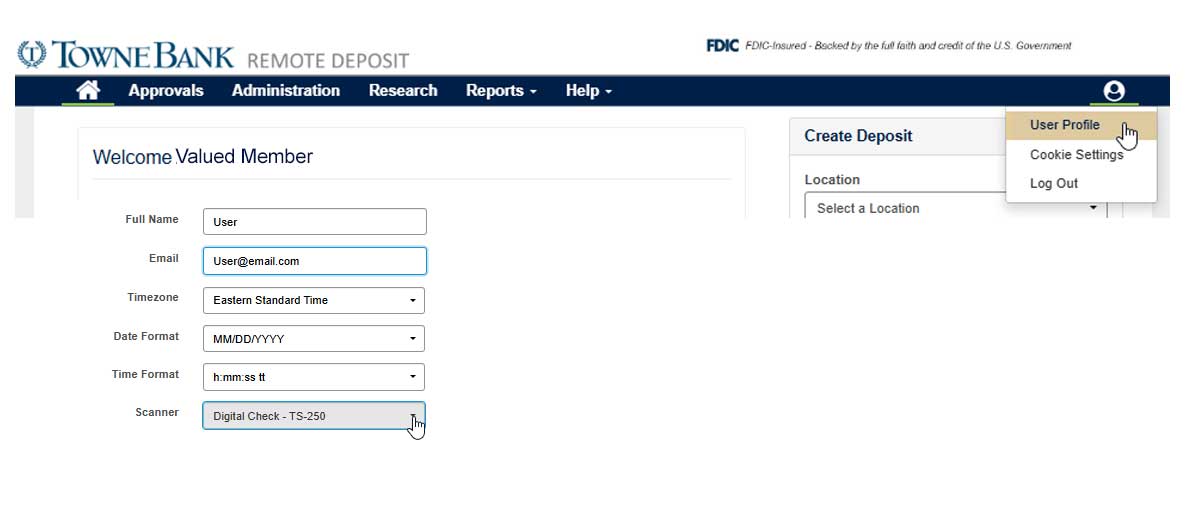
In User Profile, locate the Scanner field and select your scanner from the drop-down menu.
Scanning Your First Checks
You will need to run the TowneBank WebScan application Benchmark Technologies installed during your appointment before scanning checks.
Locate WebScan
Go to your desktop and locate the WebScan icon, double click it to run the application.

Look for this icon
Double click the WebScan icon on your desktop.
Confirm WebScan Is Running
You should see WebScan running in your system tray. If so, you're ready to start using the system.
Look for WebScan in your system tray
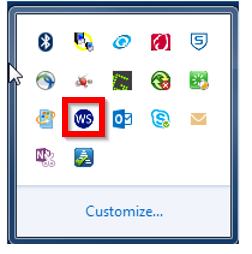
WebScan is running? You're ready to start using the Remote Deposit Capture system.
Need Help?
Please contact our Treasury Member Care team at 844-638-6724 , M-F, 8:30 AM - 6:00 PM if you require any assistance.
What Stays the Same
-
Access to deposit checks remotely.
-
Continued access to other treasury management services.
-
Dedicated assistance from your local banker.
-
Ongoing support from Treasury Services advisors.
TowneBank Remote Deposit System
Important details to note about the TowneBank Remote Deposit System


Here are some common account questions we'd love to answer for you.
-
You will need to run the TowneBank Webscan application Benchmark Technologies installed during your appointment to begin scanning checks. Use the instructions below to get started.
- Go to your desktop and locate the WebScan icon, double-click on the icon to run the application.

- You should now see the WebScan application running in your system tray.
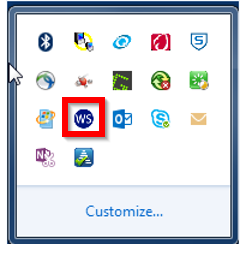
- Go to your desktop and locate the WebScan icon, double-click on the icon to run the application.
-
If you did not make an appointment prior to November 2 to update your workstation’s software, you will need to visit a TowneBank location to deposit checks. To update your software, please contact our Treasury Member Care team at 844-638-6724, M-F, 8:30 AM - 6:00 PM.
-
You will need to contact your Remote Deposit Administrator to modify your entitlements.
-
No, you will log into Towne24 to access Remote Deposit Capture. You will be able to log in using the same username and password you used at Dogwood State Bank.

Please contact your local banker or banking office with account questions. For Online Banking, please contact one of our member care teams.
844-638-6724 | M-F, 8:30 AM - 6 PM
*Your mobile carrier's web access and text messaging charges may apply. Availability may be affected by your mobile carrier's coverage area. Mobile check deposit is subject to eligibility and further review. Deposits are subject to verification and not available for immediate withdrawal. Deposit limits and other restrictions apply.