


Online Banking Has a Whole New Look
Towne-Personal and Towne-Biz online and mobile banking was recently redesigned with a fresh, new design that's easier to navigate. You can quickly view your key account details, take actions in just a few clicks or taps, and customize your experience for your desktop or mobile experience.
Bill Pay, Refined with You in Mind
We’ve updated the Bill Pay landing page to give you a clearer, more intuitive view of your payments, including when each bill was last paid and easier access to payment history for every biller. We’ll continue enhancing your Bill Pay experience over time, guided by your feedback.
Bill Pay Demo

Easily view all payments that are scheduled or have upcoming payments in the next 30 day with the payment calendar screen.

Different filtering options allow you to refine your search criteria based upon payee, category, amount, or status and date range.
The Bill Pay categories page allows you the ability to add, view, or edit your payees into categories.
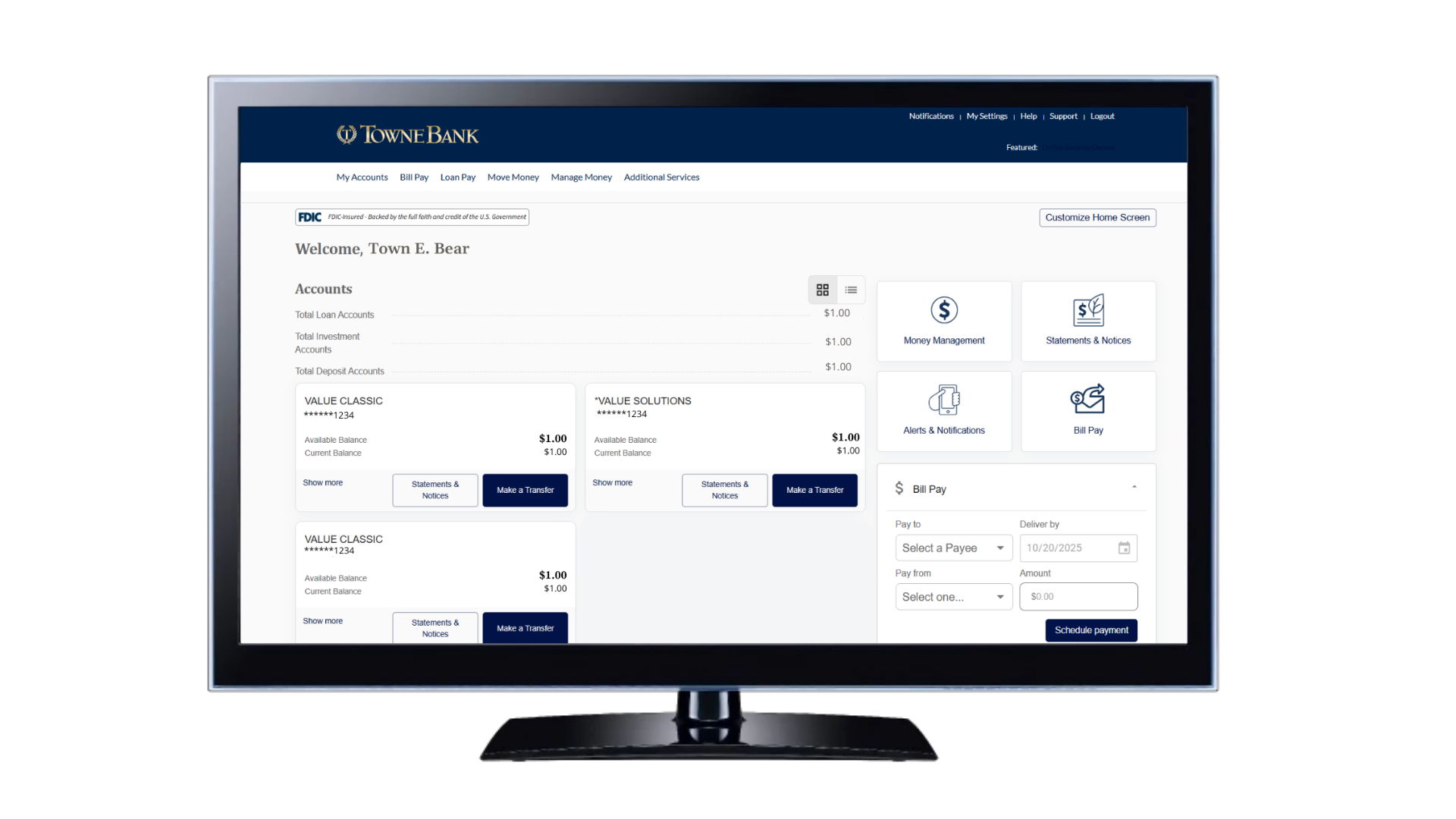
Other Recent Updates: Customize Your Home Screen & Easier Access to Tools
Enjoy the freedom of changing the order of your accounts on your home screen or remove them from your view completely. You can also update your account names to make them easier to identify and even change your name in the greeting!
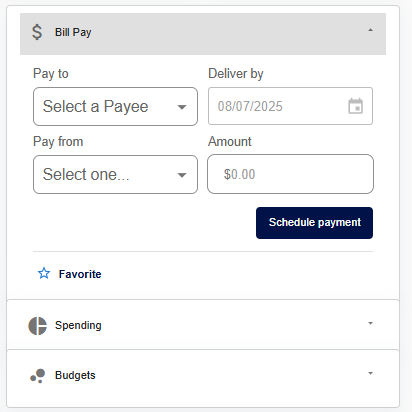
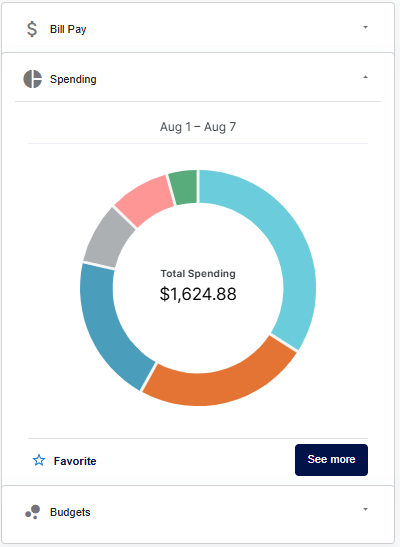
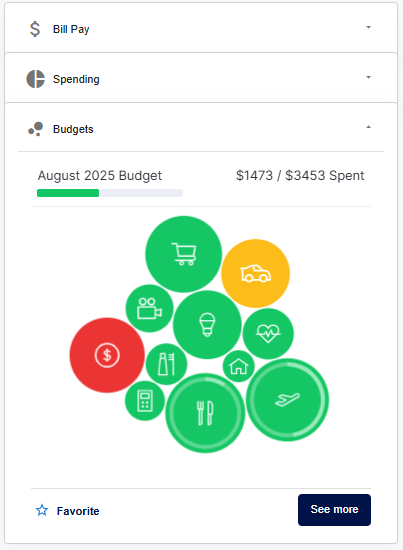
Access Bill Pay, Spending, & Budgeting Tools in Just One Tap
On your computer, you’ll see these tools on the right side of the screen. On your phone, they are right below your account details. These tools help you use Bill Pay and track your money so it’s easier to manage your finances.
A Better Design for Your Account History Page
The updated layout of your Account History page allows you to navigate to important account and balance information quickly and easily. Plus, you can change which account you're viewing with just one tap right on this screen without navigating back to the home page.
Other Account History updates include:
- Find quick actions such as transfers and online statements at the top of the screen.
- Click on the arrows next to each transaction to find detailed transaction details or check images.
- Quickly search your transactions with keywords and date ranges.

Frequently Asked Questions
-
No, the update will take place automatically and there should be no action required on your part.
-
Check images will be displayed by clicking the arrow next to each transaction to view details, including check images.
-
If you need support or help navigating the new system, please contact our Towne Member Care team at 844-638-6714, M-F, 8:30 AM - 6:00 PM.
-
Your mobile banking app should update automatically unless you have the setting enabled on your phone that requires you to approve each update. If that setting is enabled, you will need to manually force the update.
-
You will continue to log into online and mobile banking the same way you do today using the same username and password.
Your mobile carrier’s web access and text messaging charges may apply. Availability may be affected by your mobile carrier's coverage area.